Calendar Views
The calendar combines visible events from your enabled sources.
Week and fortnight
The main timeline can show seven or fourteen days. Turn on Fortnight view to see two weeks, or use the compact/full-day control to adjust how much of each day is visible.
Use the previous, current, and next controls to move through time. Select a day heading to open the day detail.
Month and year
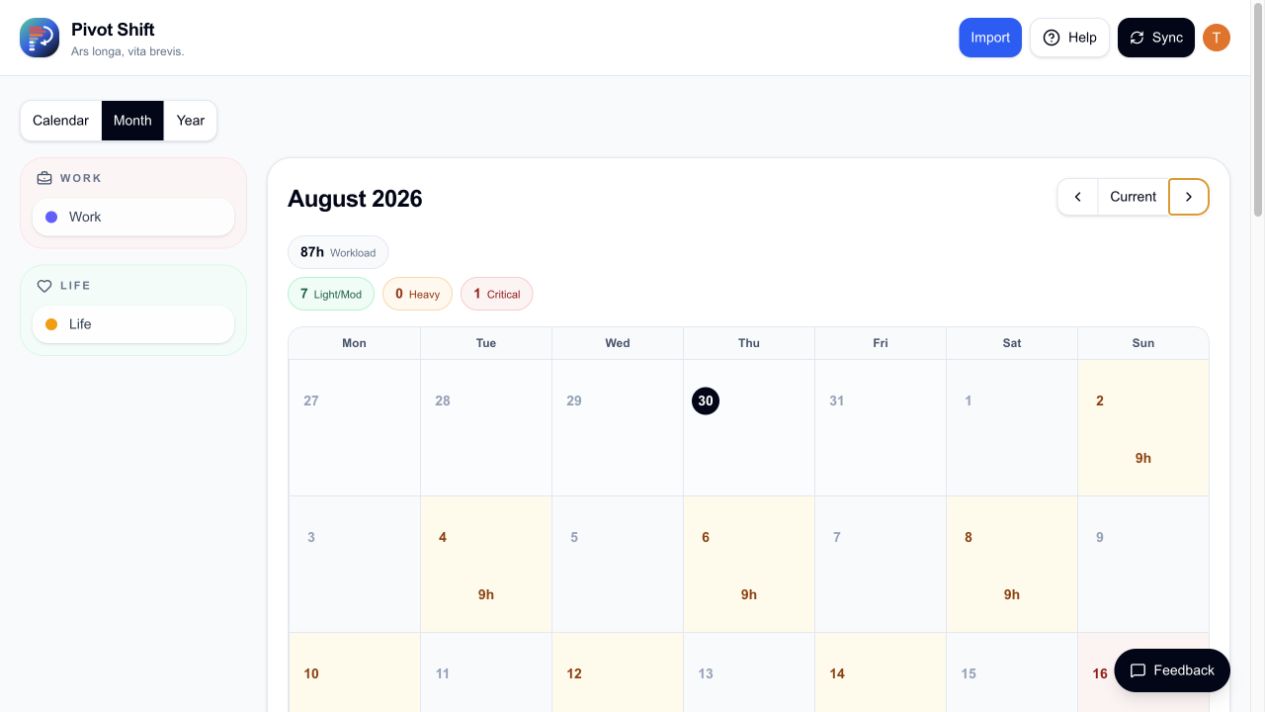
Month view provides a broader schedule overview. Year view helps you move quickly to a month, then inspect its days in detail.
Day detail
Select a day to see timed events, all-day notes, and events hidden from Pivot. Select an event to inspect its source, workload setting, and whether it is an external event or Pivot overlay.
Event display
Timed events occupy their scheduled hours. All-day events and non-workload items appear as notes or badges and are normally excluded from fatigue calculations.
Moving and resizing events
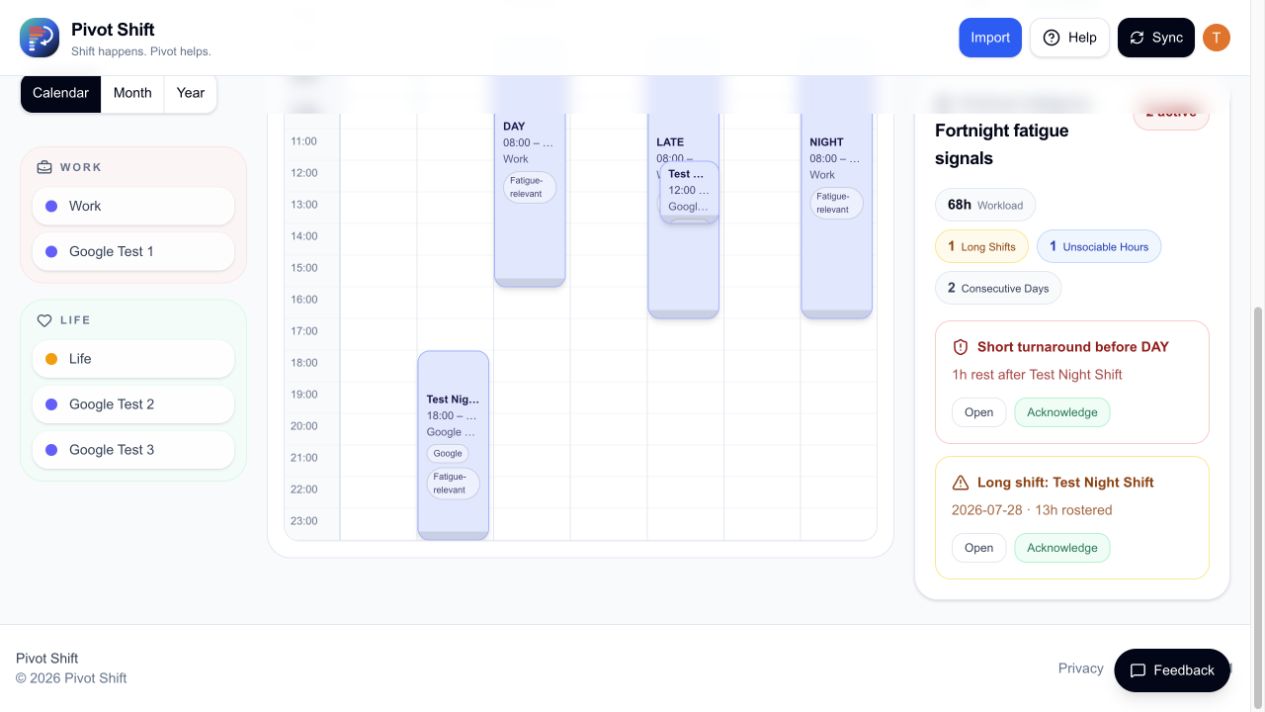
For events managed by Pivot Shift, drag the event block to move it. Pull the shaded lower edge up or down to change its end time in 15-minute steps.
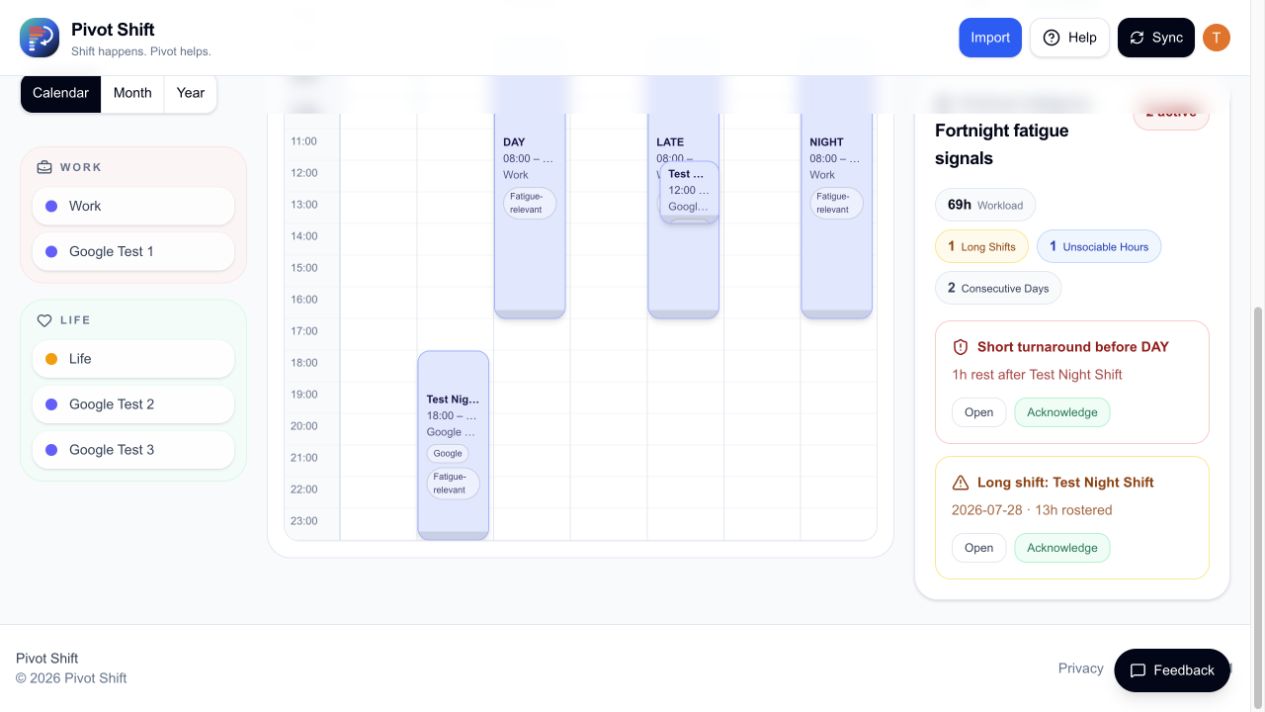
The updated time and workload totals appear as soon as you release the edge.
Google and other external calendars remain the source of truth. Open an external event and save your change to create a durable Pivot overlay instead of changing the original calendar.
Export
Calendar export creates an ICS file from the events currently available to export. For a continuously updated read-only feed, see Subscriptions.