Adding and Importing Events
Open Import, choose the destination source, and select how you want to add events.
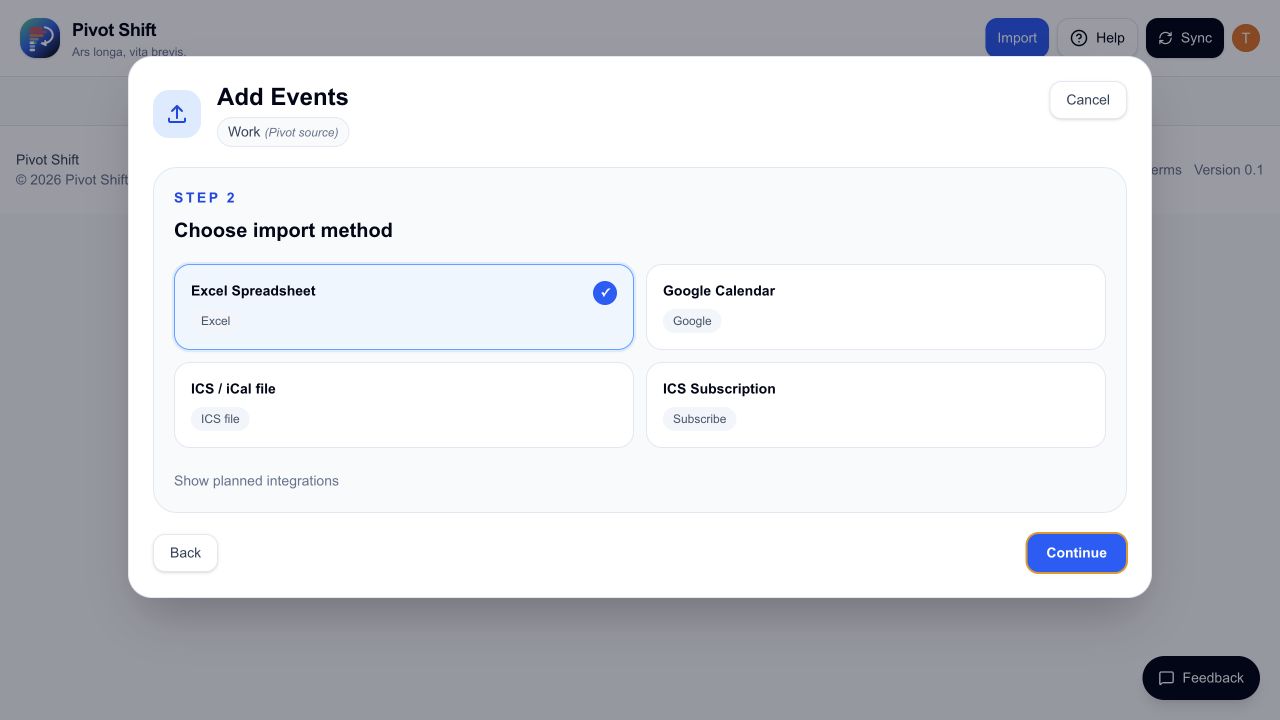
Excel rosters
- Choose Excel Spreadsheet.
- Select your file and check the roster year.
- Pivot Shift checks the workbook and shows what it found.
- If the file has several worksheets, check the suggested worksheets and untick any notes or instructions you do not need.
- Review the events before continuing.
If your spreadsheet has one event per row, Pivot Shift will show a direct preview. The usual headings are Date, Start time, End time, Title, Shift / type, Location, and Notes. An All day column is optional. If the sheet contains several staff members, you must choose one before continuing; Pivot Shift will not offer to import everyone.
For a grid roster, confirm where the dates appear, enter the name or code used for you in the roster, then select Find shifts. Manual row, column, and cell settings are available if the automatic result is not right.
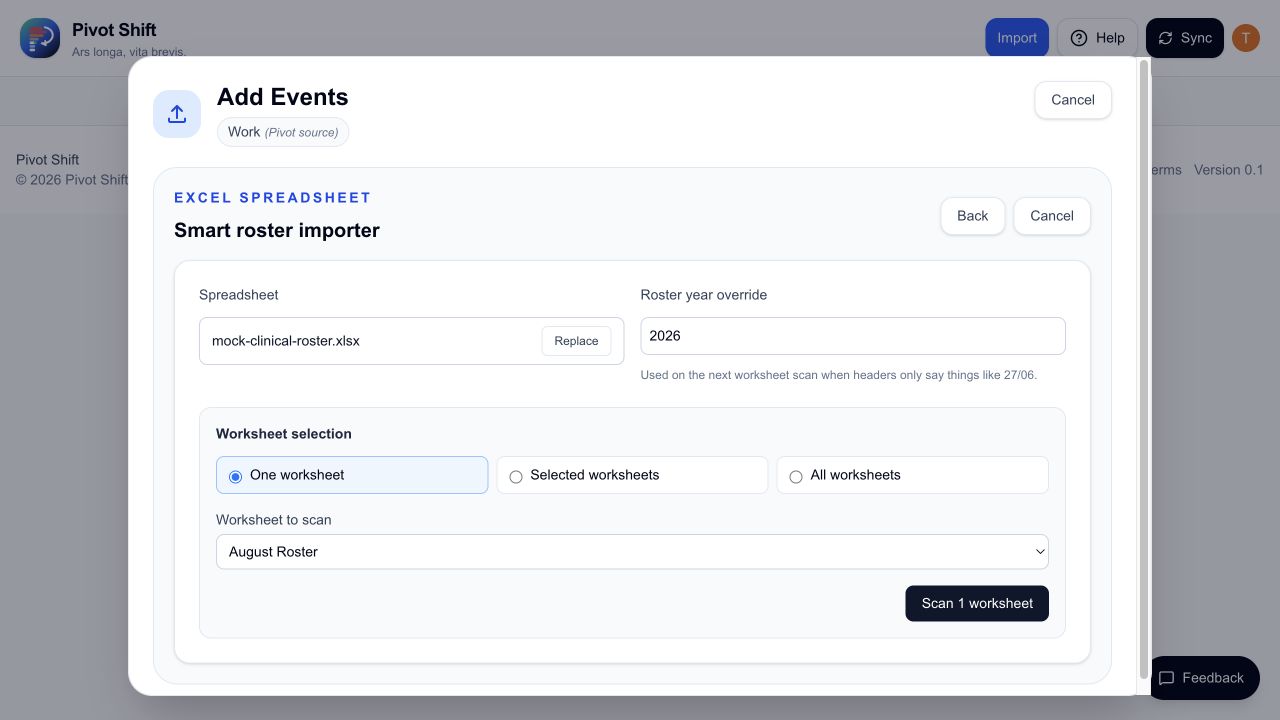
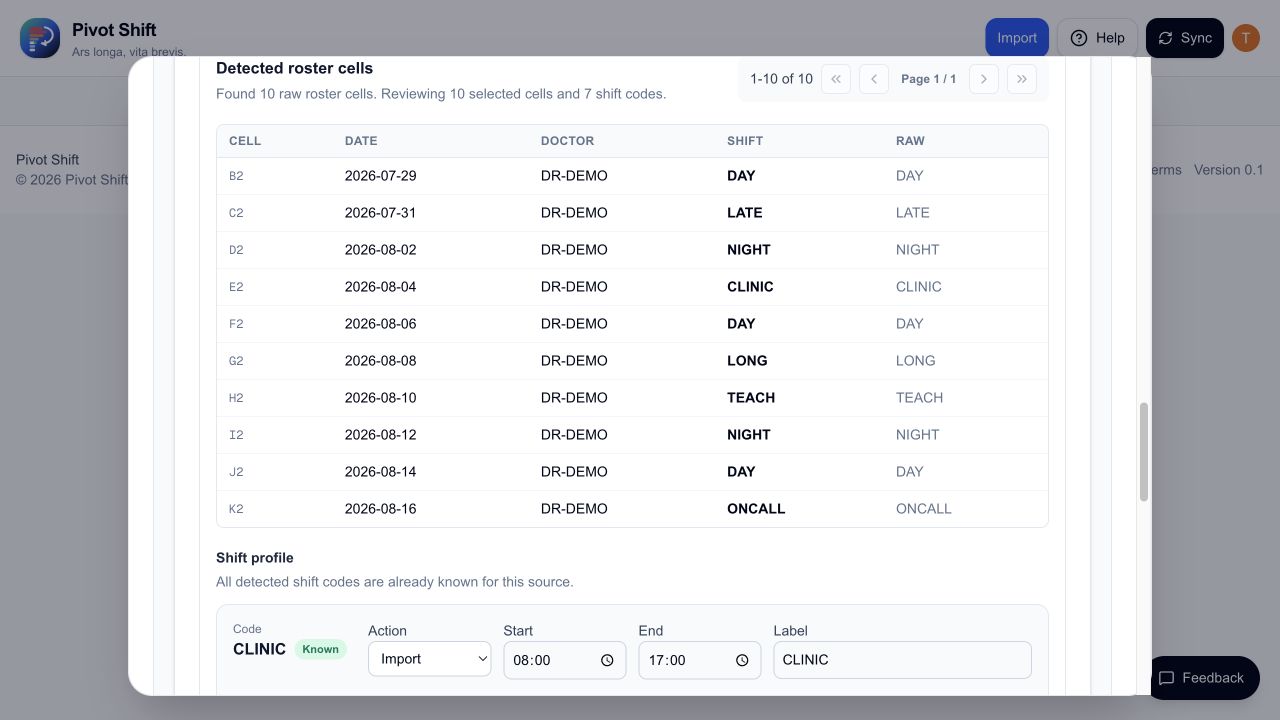
Review the preview carefully, especially the year, overnight shifts, and on-call start date. Pivot Shift remembers the shift details saved for that source, but you should check them again if the roster format changes.
Google Calendar
- Choose the destination source.
- Select Google Calendar as the method.
- Connect or reconnect Google when prompted.
- Choose a Google calendar and select Import into source.
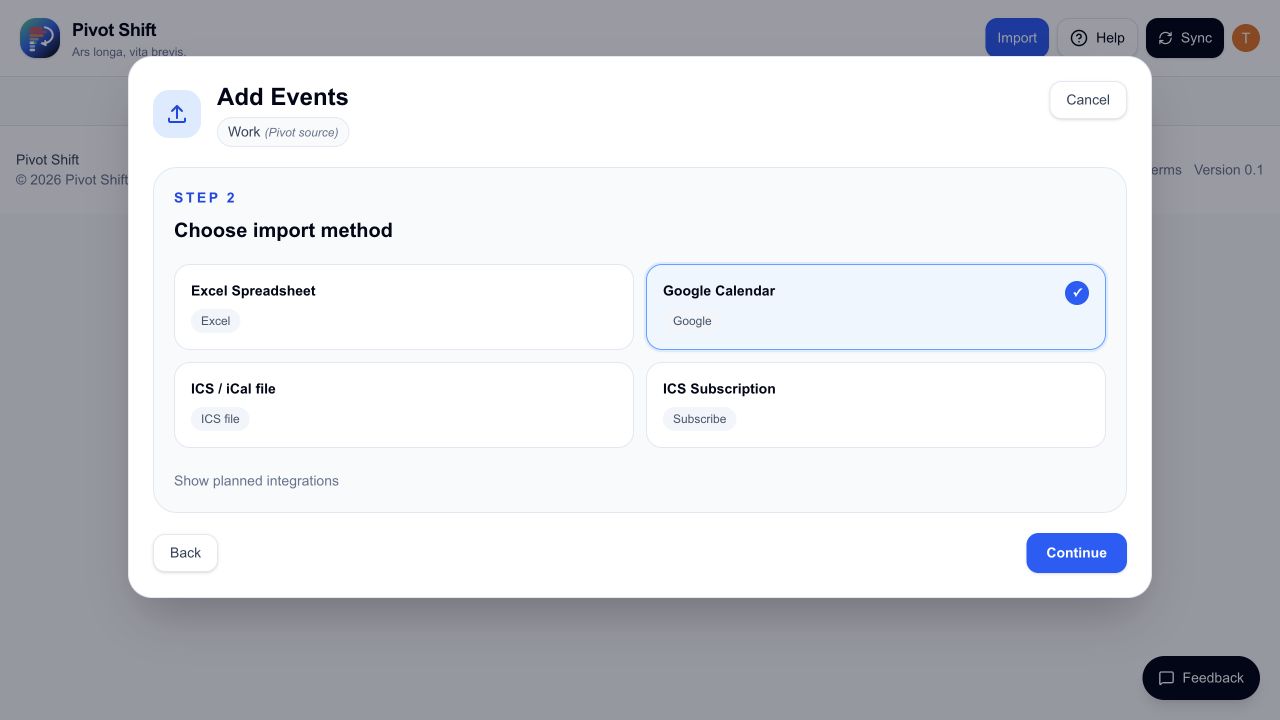
Google events remain read-only in Pivot Shift. See Google Calendar for connection and privacy details.
ICS files
Use ICS / iCal file for a one-time import. Check the preview after import; unusually complex recurring events may need manual review.
ICS subscriptions
Use ICS Subscription when you have a published calendar URL that should refresh. The publisher remains the source of truth.
Manual shift creator
Choose Manual shift creator when your usual work pattern is not supplied in a roster or calendar.
- Enter a shift name, type, and location.
- Select each weekday you normally work.
- Set the hours for each selected day. Use Add another time to create a split shift.
- Choose weekly, fortnightly, monthly, or a custom number of weeks or months.
- Set the start date and Repeat until date.
- Check the number of shifts, then review them before saving.
For a monthly pattern, choose the first, second, third, fourth, or last occurrence of the selected weekdays. Each generated shift can be edited separately afterwards.
You can use the manual shift creator with a new source or any existing source. If you choose Google Calendar or another external source, the shifts are saved as Pivot-only overlays. They appear alongside the imported calendar in Pivot Shift, but Pivot Shift does not add or change anything in the external calendar.
Duplicate review
When an imported event appears to match an existing event, Pivot Shift shows a duplicate review. Leave a duplicate unselected to keep the existing event, or select it when you intend to replace the existing copy.
Before finishing
Check the first and last imported dates, event times, overnight shifts, all-day items, source colour, and the number of saved events.