Getting Started
You can get useful calendar visibility in a few minutes.
1. Create your sources
A source represents a workplace, organisation, personal stream, or connected calendar. Give each source a clear name and colour so its events are easy to recognise.
Open Settings, find Sources, and create the sources you need. Mark work sources as Work so their timed events can contribute to workload and fatigue calculations. Use Life for personal calendars and non-work commitments.
2. Bring in events
Choose Import and select a source, then choose a method:
- Excel Spreadsheet for a roster file
- Google Calendar for calendars connected to your Google account
- ICS / iCal file for a one-time calendar import
- ICS Subscription for a feed that Pivot Shift can refresh
- Manual shift creator for a regular weekly, fortnightly, monthly, or custom work pattern
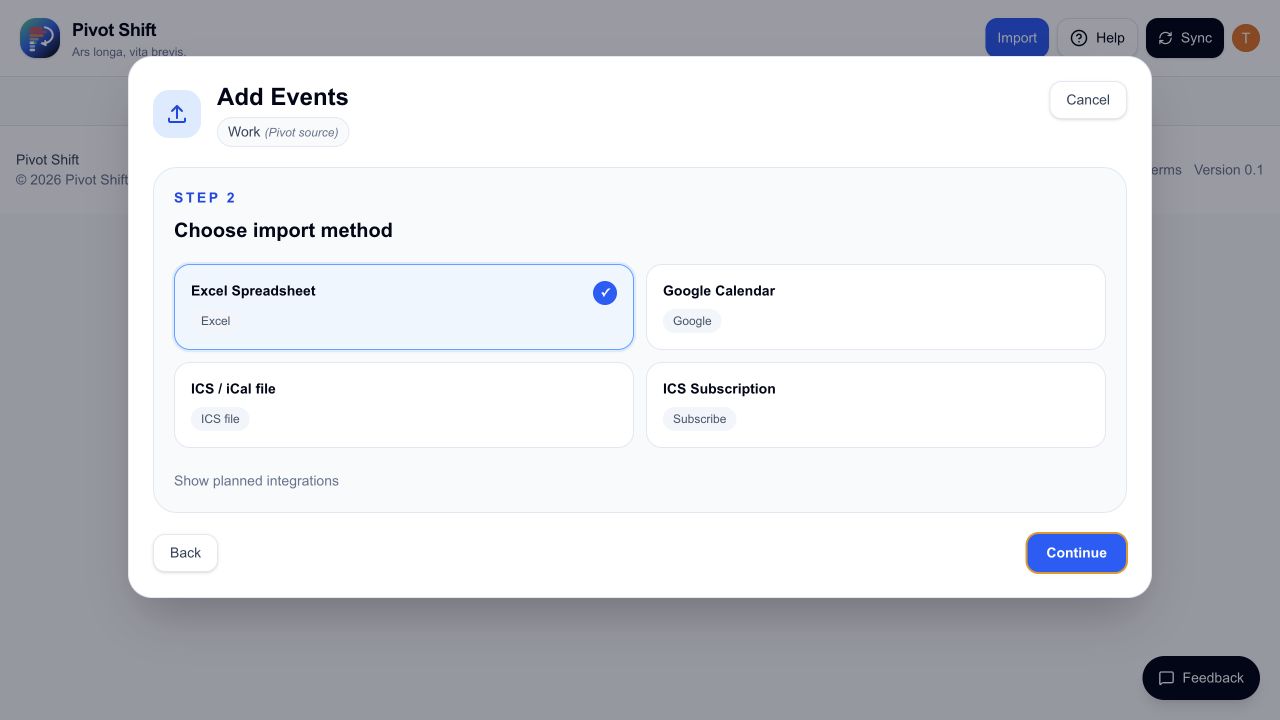
Review any detected duplicates before saving.
3. Check your calendar
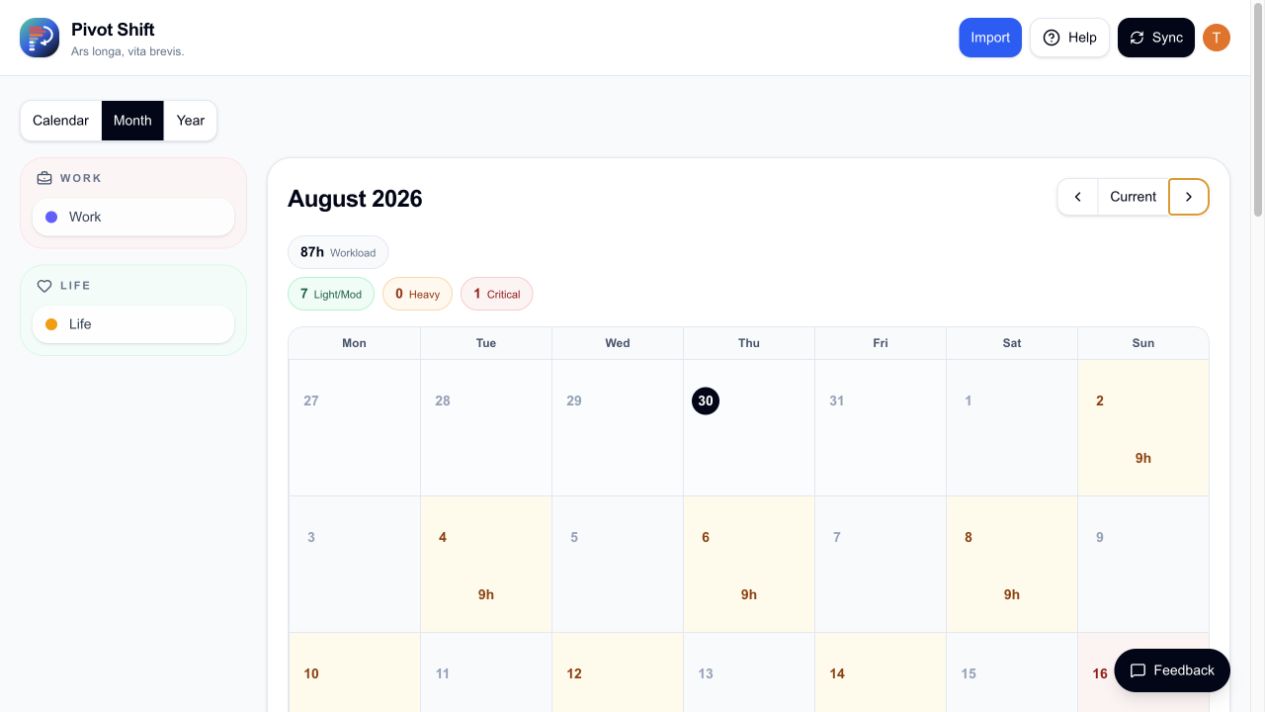
Use the calendar controls to move between the current week, fortnight, month, and year. Select a day to open its detail view. Select an event to review or edit it.
4. Review alerts
Open Alerts to see overlaps and fatigue-related signals. Acknowledge an alert when you have reviewed it; acknowledged alerts can be restored later.
5. Set your preferences
Open Settings to choose your default calendar view, manage sources and connections, update roster profiles, and manage your subscription.